
Most photography studios in India find their clients through Instagram, WhatsApp and word of mouth. That works well, until a family asks "Do you have a website?" or a payment gateway asks for your website URL before it will activate your account. Paying a developer for a site you will rarely update feels like too much, and a free page builder still leaves you writing terms and refund policies on your own.
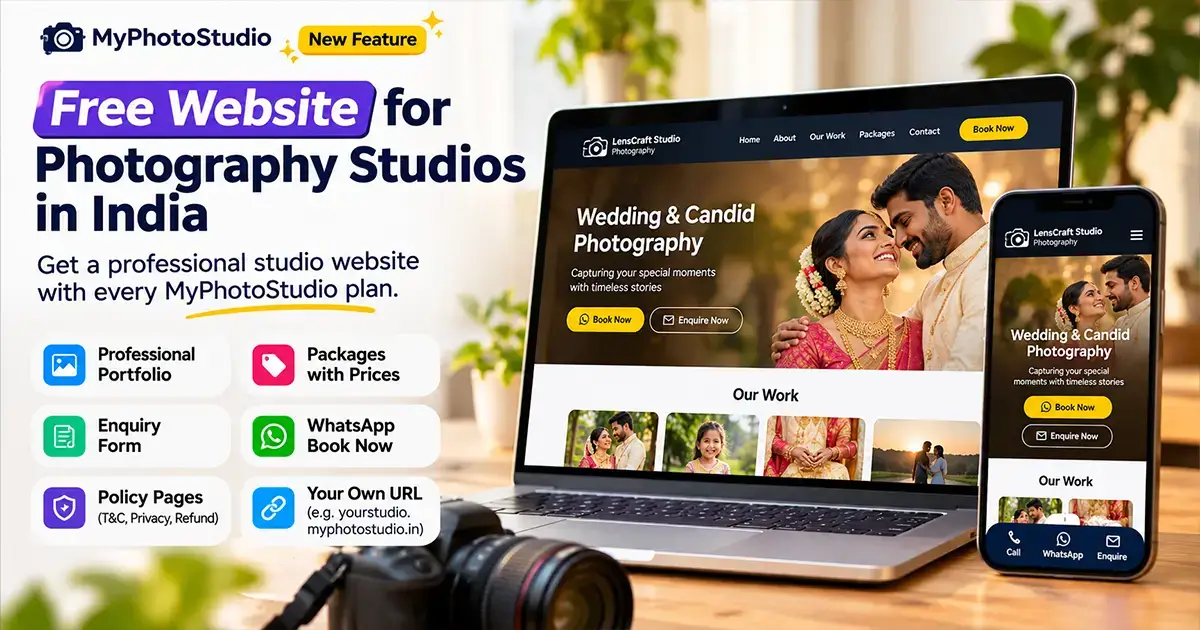
The short answer: every paid MyPhotoStudio plan now includes a studio website at no extra cost. You get your own address like yourstudio.myphotostudio.in, a portfolio, your packages with prices, an enquiry form, a WhatsApp "Book now" button and the policy pages payment gateways usually ask for. You build it from the same Studio Admin panel you already use for events and galleries. For a quick overview, see the photography studio website feature page.
This guide walks through what is on the site, what you need to fill in, how to pick the look, and how to use it when you register for a payment gateway.
What Your Studio Website Includes
The website is a clean one-page site with separate policy pages. Visitors scroll through these sections:
- Cover photo and studio name - your best photo across the top, your studio name, a one-line tagline and buttons to call, WhatsApp or send an enquiry.
- About us - a few short paragraphs about your studio, the events you cover and how you work.
- Our work - a portfolio of up to 12 photos that open full screen when tapped.
- Packages - optional. Your packages with prices and what each one includes.
- Contact us - business name, address, phone and email, plus an enquiry form.
The header stays at the top of the screen while visitors scroll. Your logo and studio name sit on the left, the menu sits in the middle, and a Book now button sits on the right. On phones, a bar at the bottom of the screen keeps Call, WhatsApp and Enquire one tap away.
Separate pages for Terms and Conditions, Privacy Policy, Cancellation and Refund Policy, Shipping and Delivery Policy and Contact are linked from the footer of every page.
Your Website Address
Your site lives at yourstudio.myphotostudio.in, where "yourstudio" is a short name you choose. It opens over a secure https:// connection, so browsers show it as safe.
A few rules for the name:
- 3 to 30 characters, using lowercase letters, numbers and hyphens.
- No hyphen at the start or end, and no two hyphens together.
- It must not already be taken. Studio Admin checks this as you type and shows you the full link with a copy button.
Choose it carefully. The address is locked after you publish for the first time, because payment gateways and clients will already have it. If you really need to change it later, our support team can do that for you. Your studio name or a short version of it is usually the best choice, for example sriramstudio or lenscraft-madurai.
The Content You Write
Open Studio Admin > Website. The Basics tab holds everything visitors read.
Business details
Your business name, phone, email and address are not typed again on the Website page. They come from your studio Settings, which start with the details you gave when your studio was registered. Change them in Settings and the website shows the new details too. Keep the business name exactly as it appears on your bank account and KYC documents, because payment gateways compare the two.
Tagline and About us
The tagline is one line under your studio name, such as "Wedding and candid photography in Coimbatore". The About us text needs 150 to 1,500 characters. To save you starting from a blank box, it comes pre-filled with a starter paragraph that includes your studio name. Rewrite it in your own words. Mention the events you cover, the area you travel to, and what clients get - edited photos, albums, prints, online galleries.
All website text must be in English. This keeps the pages consistent for visitors and for payment gateway reviewers.
Links and display options
- WhatsApp number - used by the Book now button, the WhatsApp buttons and the floating WhatsApp icon.
- Instagram, Facebook and YouTube links - shown in the contact section.
- Google Maps link - so clients can find your studio.
- Show address, Show packages and Show GST number switches - turn each on or off.
Portfolio Photos
The Portfolio tab takes up to 12 photos. You need at least 3 to publish. The first photo you upload becomes your cover photo at the top of the site. To use a different photo as the cover, click Set as cover on it.
- JPEG, PNG or WebP, up to 15 MB each.
- At least 800 pixels on the long side.
- The cover always shows first. Move the other photos earlier or later to change their order, and add a short description for each photo.
- When you upload, you confirm that you have the right to publish the photos.
- Location and camera details are removed from the files automatically.
Portfolio photos are uploaded separately. They are never picked from your clients' event galleries, so guest photos stay private.
Pick photos that show range rather than twelve shots from one wedding: a couple portrait, a candid moment, family, a detail shot, an outdoor pre-wedding frame, an event or two. Wide and tall photos both work, because the layout arranges them by shape.
Colours and Look
You do not need a designer to make the site look right. Choose two things:
- Theme - Day (light background) or Night (dark background).
- Accent colour - one of six presets: Marigold, Kumkum, Peacock, Indigo, Leaf or Plum.
The accent colour is used for buttons, links and the package price panels. All six are picked to stay readable on both themes, so there is no wrong combination. A simple way to choose is to match your logo: a red or maroon logo goes well with Kumkum, a gold or orange one with Marigold, blue with Indigo or Peacock. If your photos are bright and colourful, the Day theme lets them stand out. Night suits darker, moodier work.
Your logo from Settings appears in the header next to your studio name.
Packages and Prices
If you already create packages in Studio Admin > Packages, the website can show them. Turn on Show packages and every active package appears as a card with its name, price and what is included.
To show a clean list of inclusions, write each one on its own line in the package description, starting with * or -. For example:
* 2 photographers* 1000+ edited photos* Premium album
Each card has an Ask about this package button that takes the visitor to the enquiry form with the package name already in the message. The Event type dropdown in the enquiry form also lists your package names, so you know straight away which package someone is asking about.
Packages are off by default. Some studios prefer to discuss prices on a call, and that is fine. Keep in mind that some payment gateways ask to see prices on the website during review.
Enquiries and the Book Now Button
The website gives visitors three quick ways to reach you:
- Book now in the header opens WhatsApp with a ready message: "Hi [your studio name], I would like to book a shoot." The visitor only has to press send.
- Call opens the phone dialler with your number.
- Enquiry form collects name, mobile number, email, event type, event date and a message.
Every enquiry is saved in the Enquiries tab and you get an email for each new one. Mark each enquiry New, Contacted or Closed, and call or WhatsApp the person with one tap from the list. Nothing gets lost in a chat thread.
Using the Website for Payment Gateway Registration
When you apply for a payment gateway, the gateway team usually reviews your website. They want to see a real business with clear contact details and clear rules for payments and refunds. Many studios get stuck here because they have no website, or a site without these pages.
Your MyPhotoStudio website already has a page for each of these:
| What the gateway looks for | Where it is on your site |
|---|---|
| About the business | yourstudio.myphotostudio.in/#about |
| Products or services with prices | /#packages (when Show packages is on) |
| Contact details | /contact - business name, address, phone and email |
| Terms and conditions | /terms |
| Privacy policy | /privacy-policy |
| Cancellation and refund policy | /refund-policy |
| Shipping and delivery policy | /shipping-policy - how you deliver soft copies, albums and prints |
The four policies come pre-filled in the Policies tab, with your studio name and contact details already merged in. Treat them as a starting draft, not legal advice. Read each one and change it to match how you actually work - your advance amount, cancellation rules, delivery time for albums and so on. You confirm that you have reviewed them before the site can be published.
When you fill in the gateway application:
- Enter your website address exactly as it appears in Studio Admin.
- Make sure the business name on the website matches your bank account and KYC documents.
- Turn on packages if the gateway asks for prices.
- Keep your plan active. The gateway may check the site again later.
The final approval decision always rests with the payment gateway. What the website does is take away the most common reason applications are held up: a missing or incomplete website. Our platform compliance page explains how studios work as independent merchants on MyPhotoStudio.
Before You Publish
The publish bar on the Website page shows a checklist. The Publish button is enabled once every item is ready:
- Business name, phone and address filled in Settings
- About us text of at least 150 characters
- At least 3 portfolio photos
- A cover photo (set automatically from your first upload)
- Policies reviewed and confirmed
- All website text in English
- An active paid plan
Use the Preview button at any time to see the site exactly as visitors will see it. The preview is only visible to you while you are logged in.
Free Trial, Paid Plans and Renewals
The website is included in every paid plan at no extra cost, including the Starter plan.
On the free trial you can build the whole site - choose your address, write About us, upload photos, review policies and preview it. It stays as a draft that the public cannot see. When you move to a paid plan, the Publish button becomes active on its own. Nothing has to be entered again, and one click puts your site live.
Your website stays online as long as your plan is active. A short plan such as Starter ends after its validity period, so pick a plan that covers the time your site needs to stay live. If the plan expires, the site goes offline until you renew, and renewing brings it back with all your content in place. If the plan is not renewed within the grace period, the studio's data, including the website, is removed. Renew on time, especially after a payment gateway has approved your site.
Set It Up in Six Steps
- Check your business name, phone, email, address and logo in Settings.
- Open Website in the Studio Admin sidebar and choose your web address.
- Write your tagline and About us, add your WhatsApp number and social links, and pick a theme and accent colour.
- Upload 3 to 12 portfolio photos and set your best one as the cover.
- Read and edit the four policies, then confirm them.
- Click Preview, check everything on your phone, then click Publish.
If your About us text and portfolio photos are ready, your site can be live in about 5 minutes. Most of the time goes into choosing photos.
Can Google Find the Website?
Yes. Each published site has its own sitemap and is set up so search engines can read your business name, contact details and pages. Like any new website, it takes time to appear in search results. Sharing the link on your Instagram bio, Google Business Profile and WhatsApp Business profile helps clients and search engines find it sooner.
Want help setting up your studio website?
We will walk you through the address, photos, packages and policy pages so your site is ready for clients and for your payment gateway application - direct conversation with our team, no forms, no wait.
WhatsApp Us to Get StartedRelated Reading
- Photography Studio Website Builder
- How to Collect Advance Payment and Track Installments for Every Photography Booking
- How Photography Studios Can Increase Revenue Without Shooting More Events
- Photography Client Management - How Top Indian Studios Handle Bookings, Payments, and Deliveries
- Photography Studio Management Software
- MyPhotoStudio Features
Transform Your Photography Studio Today
Start automatically delivering thousands of event photos directly to your clients using MyPhotoStudio's AI Face Recognition - from ₹1,000 per event.
Start Free TrialExplore our AI photo sharing platform, learn about our photography CRM software, or view pricing plans.